

Getting started with Nanome XR
7 steps from boxed headsets to a shared session: hardware, choosing an MDM, setting it up, Wi-Fi, installation, accounts, and sign-in.
Nanome is device-agnostic — best experienced in VR or MR, but no headset is required. Jump in from any browser at app.nanome.ai and start exploring molecules right away.
Hardware
Step 1 of 7 · Headsets, and where to buy them
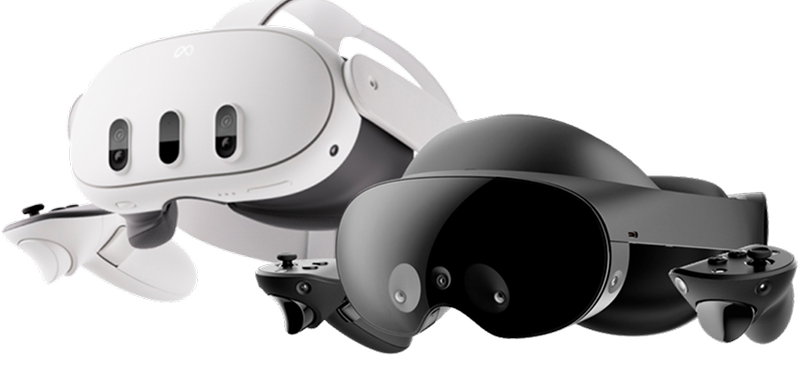
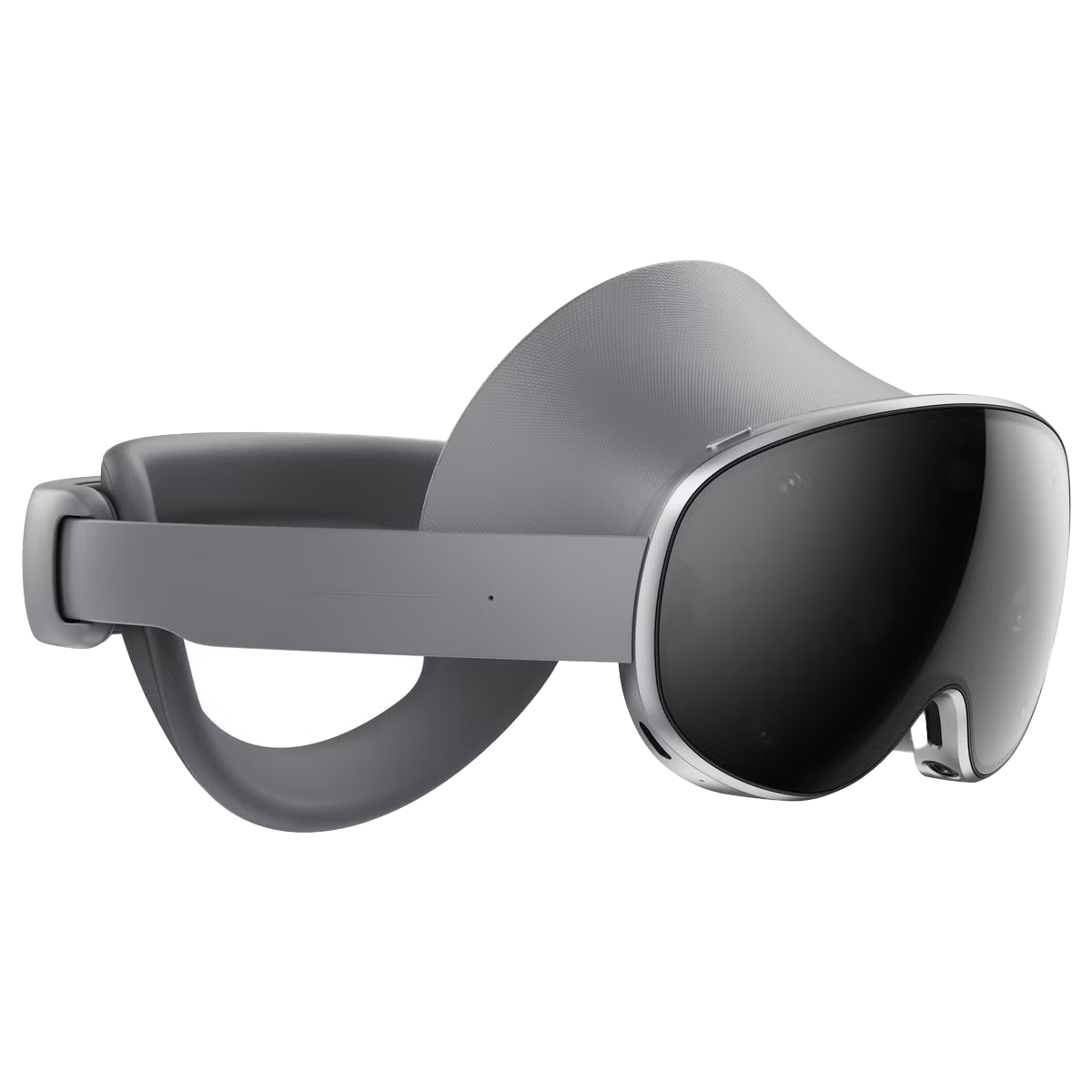
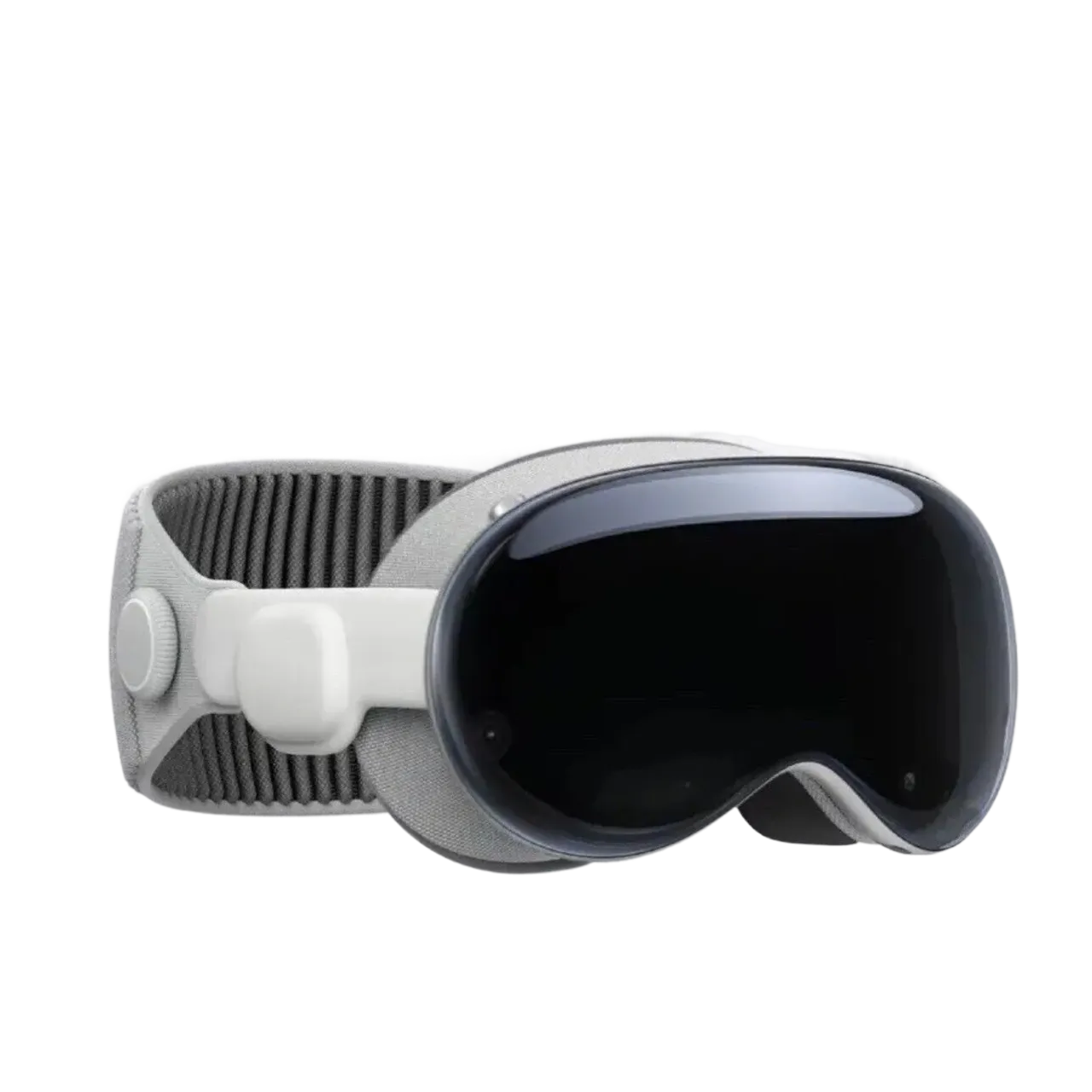
Nanome runs on Meta Quest 3 and 3S, Samsung Galaxy XR, Apple Vision Pro, and Windows PCs over Meta Link.
Where to buy
Nanome hardware partner
Preconfigured through VR Expert
VR Expert prepares each headset before it ships: enrolled in the organization's MDM, configured, and loaded with Nanome. The US order form lists ready-to-go Nanome kits for Quest 3 and Galaxy XR, and installation and a year of support can be added to every headset.
Buy direct
From a retailer
Meta Quest 3 and 3S are sold by Meta, Best Buy, and Amazon. Meta stopped selling business editions in February 2026, so organizations now buy the standard headsets and enroll them in Meta's free device management (Choose an MDM).
Choose an MDM
Step 2 of 7 · Managing a fleet of headsets
A mobile device management (MDM) service enrolls headsets into an organization, pushes Wi-Fi and apps to them, and keeps every headset on the version IT has approved. Managed headsets can also run without personal store accounts.
Which service fits
Answer three questions
1 Which headset?
Compare all three side by side
Meta Horizon managed services (HMS) FreeMore detailLess detail
Free — Free since February 20, 2026. Works with Quest 2, 3, 3S, and Pro. Manages Meta Quest only.
- Manages Meta Quest headsets only, on Quest 2, 3, 3S, and Pro
- Quest headsets that are not already enrolled in an MDM enroll through HMS on Horizon OS v74 and later
- Runs shared headsets without personal Meta accounts, with a fresh session for each user
- Device presets, Wi-Fi profiles, app and file push, and remote wipe
- Nanome is listed in the Managed App Store under Discover Apps
- Meta supports the current version for Quest 3 and 3S through January 4, 2030, with no stated date for Quest 2 and Pro
ArborXR PaidMore detailLess detail
From $7 — Per headset per month, billed annually. 30-day free trial. Manages Meta Quest, Galaxy XR, PICO, HTC VIVE, Magic Leap 2.
- Adds a management layer on top of HMS for Quest headsets
- Also manages PICO, HTC VIVE, Samsung Galaxy XR, and Magic Leap 2 headsets, with features that vary by model
- ArborXR Home launcher or single-app kiosk, locked with an admin PIN
- Secure Wi-Fi provisioning and app, video, and file push on every plan
- Release channels hold each device group on the Nanome version IT has approved
- Remote casting and usage analytics on the Essential plan
ManageXR PaidMore detailLess detail
From $7 — Per headset per month, billed annually. 30-day free trial. Manages Meta Quest, Galaxy XR, PICO, HTC VIVE.
- Enrolls Quest headsets through HMS with an organization enrollment token
- Also manages Samsung Galaxy XR, PICO, and HTC VIVE headsets, with features that vary by model
- Imports Nanome from the Meta managed store as a CSV, or deploys an uploaded APK
- Single-app kiosk and Wi-Fi with certificates on the Essential plan, though Galaxy XR cannot be kiosk-locked yet
- Multi-app home screen, release channels, remote screen streaming, and usage analytics on the Premium plan
MDM setup guides
Step 3 of 7 · Setting up an MDM
Enrollment happens during a headset's first-time setup, so it comes before apps and accounts. Each guide covers signing up, enrolling headsets, and pushing Nanome.
Choose a service
Manages Meta Quest headsets only.
Official Meta Horizon managed services documentation — work.meta.com/help
- Sign up for a free HMS organization with Meta. Adding at least 2 System admins, on shared role-based email addresses, keeps access from depending on one admin.
- Factory reset any headset that has already been set up. Enrollment only happens during first-time setup.
- During setup, choose Connect to your organization and note the 8-digit code. Enter it at work.meta.com/device while signed in to a managed account. The Meta Horizon Device Setup app enrolls headsets over USB instead, straight into Shared Mode, with no account needed.
- In Device Manager, put shared headsets in a Shared Mode device preset and assign the Wi-Fi network to it.
- Add Nanome from Apps & Content > Discover Apps in Device Manager.
Wi-Fi & network
Step 4 of 7 · A network Nanome can reach
Headsets need Wi-Fi with direct internet access and a short list of hostnames allowed through the firewall. The checklist below is written to hand straight to IT.
Six checks for IT
Direct internet, no sign-in page More detailLess detail
Guest networks that ask for a browser sign-in (captive portals) block first-time headset setup. Quest also shows a no-internet message whenever it can't reach Meta, before Nanome ever opens.
Nanome allowed by hostname More detailLess detail
Allow outbound TCP 443 to *.nanome.ai and *.nanome.com. Nanome's servers run on Cloudflare and AWS, where IP addresses change, so IP-based rules eventually break.
app.nanome.aiWeb app and workspaceshome.nanome.aiAccounts, licenses, and organizationsapi.nanome.comSign-in and licensing, Nanome 2.6 and laterapi.nanome.aiSign-in for earlier releases and Nanome Classicdownloads.nanome.aiAPK and Windows downloads
Enterprise Wi-Fi from the MDM More detailLess detail
HMS pushes WPA2 and WPA2-Enterprise networks (EAP-TLS and EAP-PEAP). ArborXR and ManageXR add WPA3, proxy settings, EAP-TTLS, and SCEP certificate enrollment, and ArborXR also supports EST. Headsets enrolled in ArborXR or ManageXR take their apps and settings, Wi-Fi included, from that MDM.
802.1X profiles need the RADIUS server's domain and a root certificate served with its full chain, intermediates included.
HMS Wi-Fi profiles → · ArborXR Wi-Fi options → · ManageXR Wi-Fi profiles →
Networks that register devices by MAC More detailLess detail
Quest 3 uses a randomized MAC address for each network by default, and other Android-based headsets and Vision Pro do the same. For MAC registration, switch that saved network to the device MAC, or turn off randomization in the HMS, ArborXR, or ManageXR Wi-Fi profile.
Firewall allowlist More detailLess detail
Nanome (headsets and web app)
  Outbound TCP 443 (HTTPS and secure WebSockets), allowed by hostname:
  *.nanome.ai, *.nanome.com
  Includes app.nanome.ai, home.nanome.ai, api.nanome.com, api.nanome.ai, downloads.nanome.ai
  Exempt these hosts from TLS/SSL inspection.

Meta Quest (Meta Horizon managed services requirements)
  TCP 80, 443, 3478, 3479, 8080
  UDP 40003, 40005, 40007, 40008, 50000-59999
  www.facebook.com, graph.facebook.com, graph.facebook-hardware.com, edge-mqtt.facebook.com, portal.fb.com
  static.xx.fbcdn.net, www.oculus.com, graph.oculus.com, scontent.oculuscdn.com, work.meta.com
  forwork.meta.com, www.google.com, devicemanager.meta.com
  Plus regional CDN hosts under xx.fbcdn.net, such as scontent-iad3-2.xx.fbcdn.net
  Full per-task list: https://work.meta.com/help/278069664862989

ArborXR (when used as the MDM)
  TCP 443:
  arborxr.com, *.arborxr.com, xrdm.app, *.xrdm.app, abxr.us, storage.googleapis.com
  arborxrstatic.com on ports 53, 80, and 443 (captive portal detection)
  Remote Assistance: stun.cloudflare.com (53, 1473, 3478), turn.cloudflare.com (53, 443, 3478, 5349)
  Full list: https://help.arborxr.com/en/articles/6399721-what-urls-and-ports-are-required-to-allow-whitelist-arborxr-traffic-in-my-local-network

ManageXR (when used as the MDM)
  TCP 443:
  *.managexr.com, managexrapi.com, managexrcdn.com
  mighty-platform-prod.appspot.com, mighty-platform-prod.firebaseio.com, us-central1-mighty-platform-prod.cloudfunctions.net
  *.googleapis.com
  *.crashlytics.com on ports 80 and 443 (error reporting)
  clients3.google.com and connectivitycheck.gstatic.com on port 80 (connectivity checks)
  Remote screen streaming: openrelay.metered.ca, stun.relay.metered.ca, and global.relay.metered.ca on ports 80 and 443 (TCP and UDP)
  Full list: https://help.managexr.com/en/articles/6994017-network-requirements
Testing the connection More detailLess detail
From the same network, curl -v https://api.nanome.com confirms port 443 is open (ping uses ICMP and doesn't test it). When a phone hotspot works and the office network doesn't, the network is blocking something. ArborXR and ManageXR both publish network tests that also run in the headset's browser.
Download & install
Step 5 of 7 · Downloading and installing Nanome
Nanome comes from a store, through an MDM, or as a manual download to sideload. Picking a method and a device shows the matching download and steps, always for the latest release.
Pick a method and a device
1 How will Nanome be installed?
Accounts & licenses
Step 6 of 7 · Accounts and licenses
Each user signs in with their own Nanome account, even on a shared headset. Users work in the web app at app.nanome.ai, and admins manage licenses and organization membership at home.nanome.ai.
Two sites, two jobs
app.nanome.ai
Where users create their Nanome account, with an email or a Google, Microsoft, Apple, or SSO sign-in. It's also where the work lives: projects and workspaces, structures loaded by PDB ID or dragged in from a computer, and sharing by link, 8-digit code, or email invite.
New accounts include a 14-day Full license trial.
home.nanome.ai
Where admins assign and reassign licenses, invite members to the organization, set up single sign-on, download invoices under Billing, and turn on two-factor authentication.

Account Settings > Security. See Two Factor Auth.
Getting a team ready
1. An account for each user More detailLess detail
Each user creates a Nanome account at app.nanome.ai, including users who share a headset. Every new account starts with a 14-day Full license trial.
2. A seat that includes XR More detailLess detail
Working in a headset takes a Collab or Full seat. The Free Web Seat covers 3 workspaces in the browser and view-only collaboration.
3. Licenses once the trial ends More detailLess detail
After the trial, headset access continues on a paid seat. The pricing page lists what each seat includes, and the Nanome team quotes volume and academic pricing by email.
4. Licenses assigned by an admin More detailLess detail
An admin assigns licenses in home.nanome.ai under Licenses > Assign Users, using each user's account email. The license activates once that user confirms the email Nanome sends.
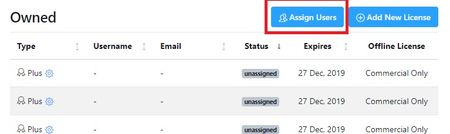
Licenses > Assign Users. See Licenses.
Related pages: Web App Basics · Licenses · home.nanome.ai overview · Plans and seats
Log in
Step 7 of 7 · Signing in on a headset
The headset login screen has 2 tabs: Code, for a short code confirmed from a phone or laptop, and Password, for a username and password typed in the headset.
Two ways in
Log in with a code More detailLess detail
- On the headset's login screen, open the Code tab. Nanome shows a short code.
- On a phone or computer, sign in at app.nanome.ai and choose Login via Device Code.
- Enter the code. The headset signs in to that account.
Each code signs in one user's account. Accounts that use single sign-on (SSO) sign in to headsets this way.
Log in with username and password More detailLess detail
- On the Password tab, enter the Nanome username and password, then choose Log in.
- Create Account on the same screen starts a new account with a 14-day free trial.
Forgotten passwords are reset at home.nanome.ai.
Next
Headsets are set up and everyone can sign in. The Session Guide picks up from there: planning a session, building a workspace, and running it with a group.